
Image Resizer
Resize photos and graphics quickly without uploading them anywhere. Add one image or a whole batch, set the new size by width and height, by percentage or by longest side, keep the proportions or crop to fill, choose JPG, PNG or WebP and the quality, and download the results — individually or as a ZIP file.
- Free to use
- No sign-up
- Runs in your browser
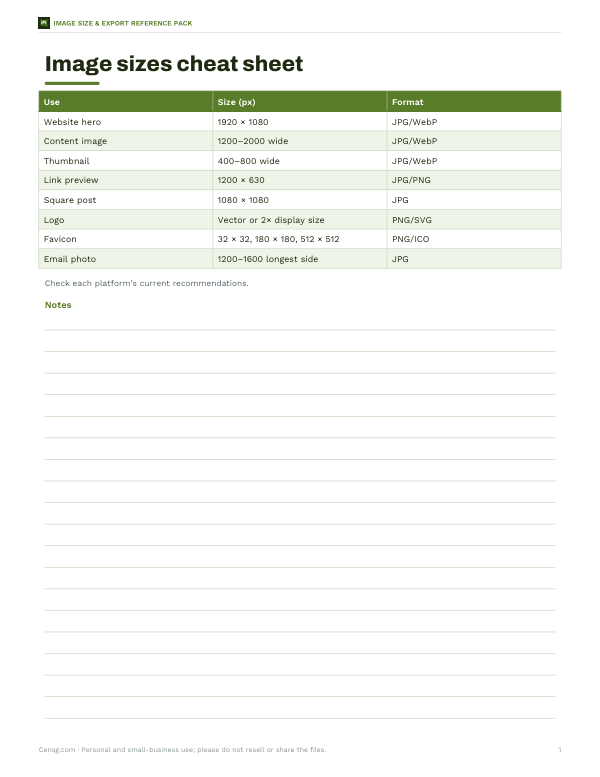
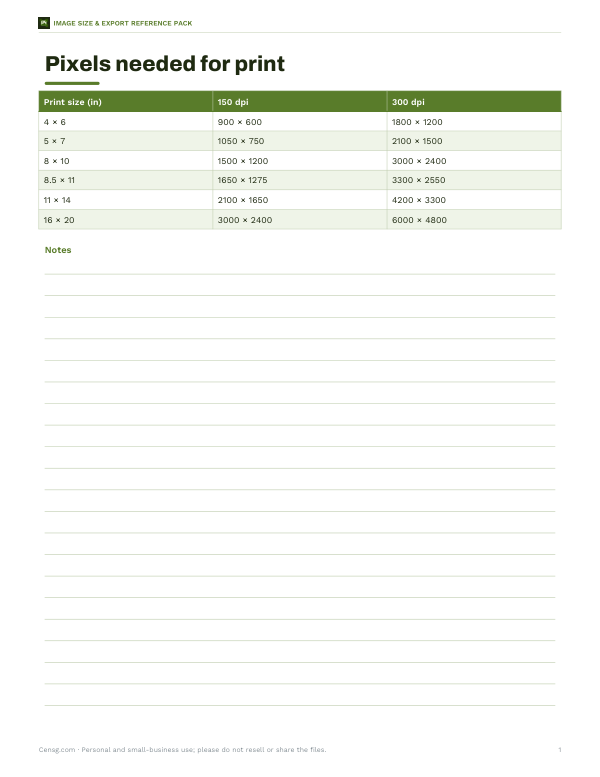
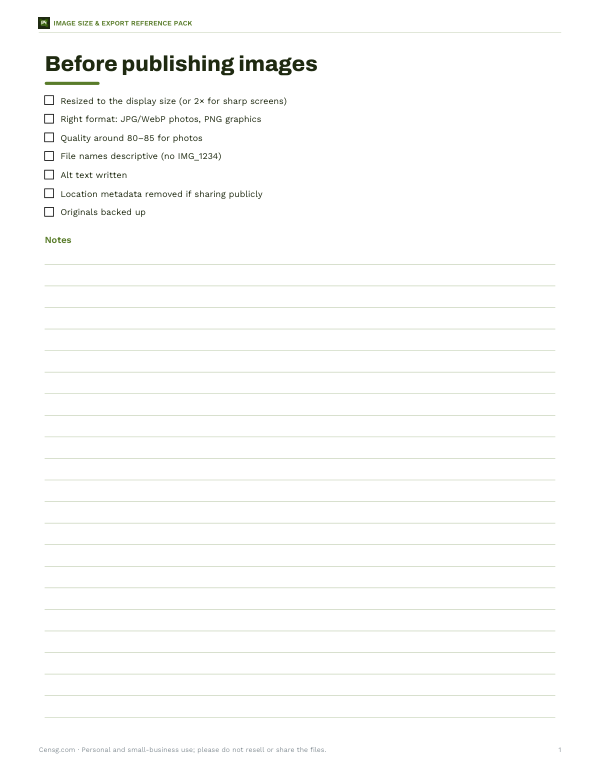
Image resizer
Image Size & Export Reference Pack
Printable image size cheat sheet for web, social and print, a pixel/DPI print size chart, an image export checklist and a product photo naming and size log.
- Size cheat sheet (PDF)
- Print size chart (PDF, XLSX)
- Export checklist (PDF, DOCX)
- Photo log (XLSX)
Formats: PDF, XLSX, DOCX. Instant download after payment (link valid 72 hours, up to 5 downloads). AI-assisted: the templates were drafted with AI help and reviewed and laid out before publishing.
$5.00 USD, one-time 4 files · about $1.25 each
- Instant download
- 7-day refund
- Secure checkout by Stripe
7-day money-back guarantee. Full refund within 7 days of purchase, even after you download.
Free sample: Image Export Checklist (PDF, 51 KB)
Full refund within 7 days — see the refund policy and license.
Free printables
Single sheets you can print right now, no sign-up. The full pack adds every sheet in one download plus the editable files.
 Printable Product Photo Log
How to resize an image
- Add one or more images — JPG, PNG, WebP, GIF (first frame) or any format your browser can open.
- Choose how to resize: by the longest side (good for batches of mixed portrait and landscape photos), by exact width and height, or by percentage.
- For exact width and height, choose whether to keep proportions, crop to fill the exact size, or stretch.
- Pick the output format and, for JPG or WebP, the quality.
- Click Resize, check the previews and sizes, and download each image or all of them as a ZIP.
Resizing happens in your browser using a high-quality, step-by-step downscale, which keeps edges sharper than a single big reduction.
Common image sizes
| Use | Typical size |
|---|---|
| Email attachment photo | 1200–1600 px on the longest side |
| Website content image | 1200–2000 px wide, compressed |
| Blog or article thumbnail | 400–800 px wide |
| Social media square post | 1080 × 1080 px |
| Social media link preview | 1200 × 630 px |
| Profile picture | 400 × 400 px or larger |
| Printing 4 × 6 in at 300 dpi | 1800 × 1200 px |
| Printing 8 × 10 in at 300 dpi | 3000 × 2400 px |
Platforms change their recommended sizes from time to time; check the current guidance for the site you are posting to.
Keep proportions, crop or stretch?
- Keep proportions — the image fits inside the width and height you set, so one side may be smaller than requested. Nothing is cut off or distorted.
- Crop to fill — the image fills the exact size, trimming the edges of the longer side from the centre. Good for thumbnails and profile photos.
- Stretch — forces the exact size by distorting the image. Rarely wanted for photos, sometimes useful for backgrounds or patterns.
File size and quality
Pixel dimensions and file size are related but not the same. Halving the width and height reduces the number of pixels to a quarter, which usually shrinks the file a lot. JPG and WebP then compress the pixels; a quality setting around 80–85 gives a good balance for photos, while 90+ keeps more detail at a larger size. PNG is lossless and best for screenshots, logos and graphics with sharp edges or transparency, but PNG photos are large. WebP usually produces smaller files than JPG at similar quality.
Worked example
A small shop owner has 24 product photos straight from a phone camera, each 4032 × 3024 pixels and about 3 MB. They choose “Longest side” 1600 px, JPG at quality 82, and resize the batch. Each photo becomes 1600 × 1200 pixels and roughly 200–300 KB — about a tenth of the original — which loads quickly on their website. They download all 24 as one ZIP file.
Enlarging images
Making an image larger than its original size cannot add real detail; the resizer fills in pixels by interpolation, which makes the result softer. Small enlargements (up to about 20–30%) are usually acceptable; for large enlargements, use the highest-resolution original you have. For print, check the pixel dimensions needed at 300 dpi before you start.
Transparency and backgrounds
PNG and WebP keep transparent backgrounds. JPG does not support transparency, so transparent areas are filled with white when you choose JPG. If you need a transparent logo or cut-out product image, choose PNG or WebP as the output format.
Resizing for print
For printing, what matters is pixels per inch at the final print size. Divide the pixel dimensions by the print size in inches: a 3000 × 2400 pixel image printed at 10 × 8 inches has 300 pixels per inch, which is sharp for photos viewed up close. Posters viewed from further away can use 150 ppi or less. Resize to the exact print size only at the end, and keep the original for other uses.
Resizing for sharp screens
Modern phones and laptops have high-density displays that show about two device pixels for every CSS pixel. An image displayed 600 pixels wide on a web page looks sharpest if it is about 1200 pixels wide. Websites often provide several sizes and let the browser choose, but if you upload one version, 1.5–2 times the display width is a good compromise between sharpness and file size.
Photo metadata
Photos from phones and cameras often contain metadata such as the date, camera model and sometimes GPS location. Images re-encoded through a browser canvas, as here, do not carry that metadata over, which can be a privacy benefit when sharing photos online. Keep your originals if you need the metadata for your own records.
Privacy
Images are processed entirely in your browser. They are not uploaded, stored or shared, and the resized copies exist only on your device until you download them.
Frequently asked questions
How do I resize an image without losing quality?
Reduce size rather than enlarge, keep proportions, and use a high quality setting (85–95) or PNG for graphics.
Can I resize many images at once?
Yes, select several files, resize, and download them as a ZIP.
Are my photos uploaded?
No, resizing happens on your device.
What size should photos be for email?
About 1200–1600 pixels on the longest side is plenty for viewing.
Why did my transparent PNG get a white background?
You chose JPG, which does not support transparency; choose PNG or WebP.
Does resizing remove location data?
Yes, images re-encoded in the browser do not keep the original metadata.
Which format should I choose?
JPG or WebP for photos, PNG for screenshots, logos and images that need transparency.